Tutorial for Windows
1. Prepare a compatible PC with 64-bit Windows 10 or newer. You can use a mini PC or a compute stick connected to your TV or screen, an all-in-one PC, or a regular desktop PC or laptop. See our hardware recommendations for more details.
2. Download the SlideShow installation MSI file for free.
3. Run the downloaded MSI file. As the installer is downloaded from the internet, Windows might display a "Windows protected your PC" warning. In that case, click on More info and then Run anyway.
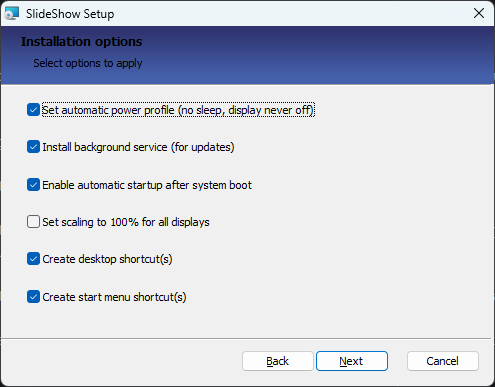
4. Follow the steps of the installer. On the options page, we suggest keeping the pre-selected options enabled, as they prepare the PC for digital signage usage:
- Set automatic power profile - the PC will never go to sleep and the display will never be turned off
- Install background service - required for remote updates, rebooting the PC and the watchdog
- Enable automatic startup after system boot - SlideShow will start automatically after the user logs in to Windows, see Automatic startup
- Set scaling to 100% for all displays - not selected by default; useful if the content should use all the pixels of the display without Windows scaling
Installation requires administrator rights. At the end of the installation, leave Launch SlideShow now checked and finish the installer.
5. SlideShow will start in fullscreen and display the initial screen. SlideShow is now ready to be used, you can upload first files using any of the methods mentioned on the screen.
6. To open the on-screen menu, press Enter or Space key, or drag the mouse from the left edge of the screen. Press Esc to close the menu. In the on-screen menu, you can:
- control the playback (
Media control) - open the web interface directly on this PC (
Configuration) - add files from any drive connected to the PC, e.g., USB flash drive (
Add from storage) - display the address of the web interface (
Help) - close SlideShow (
Exit)
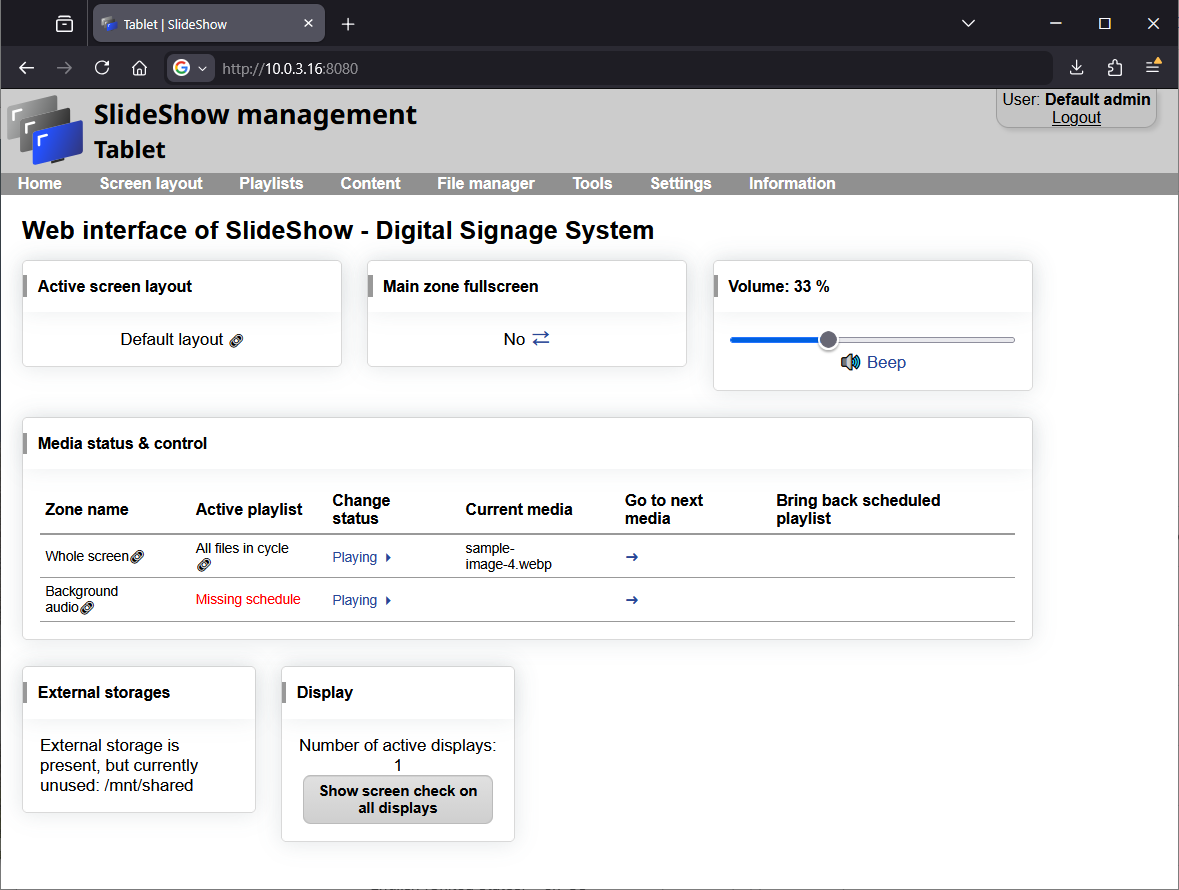
7. If your PC is connected to the local network (through Wi-Fi or Ethernet cable), you can access Slideshow's web interface also through browser on another computer. Just enter the URL address of the web interface displayed on the screen (above the first QR code) to the browser. If Slideshow is already displaying some other files, you can reopen the screen with URL address through the on-screen menu → Help, or using keyboard shortcut h or F1.
If the web interface is not accessible from other computers, check that SlideShow is allowed in Windows Defender Firewall (see Web interface).
The default username / password for the web interface is admin / admin. You can manage advanced configuration and settings there, review statistics and check logs.
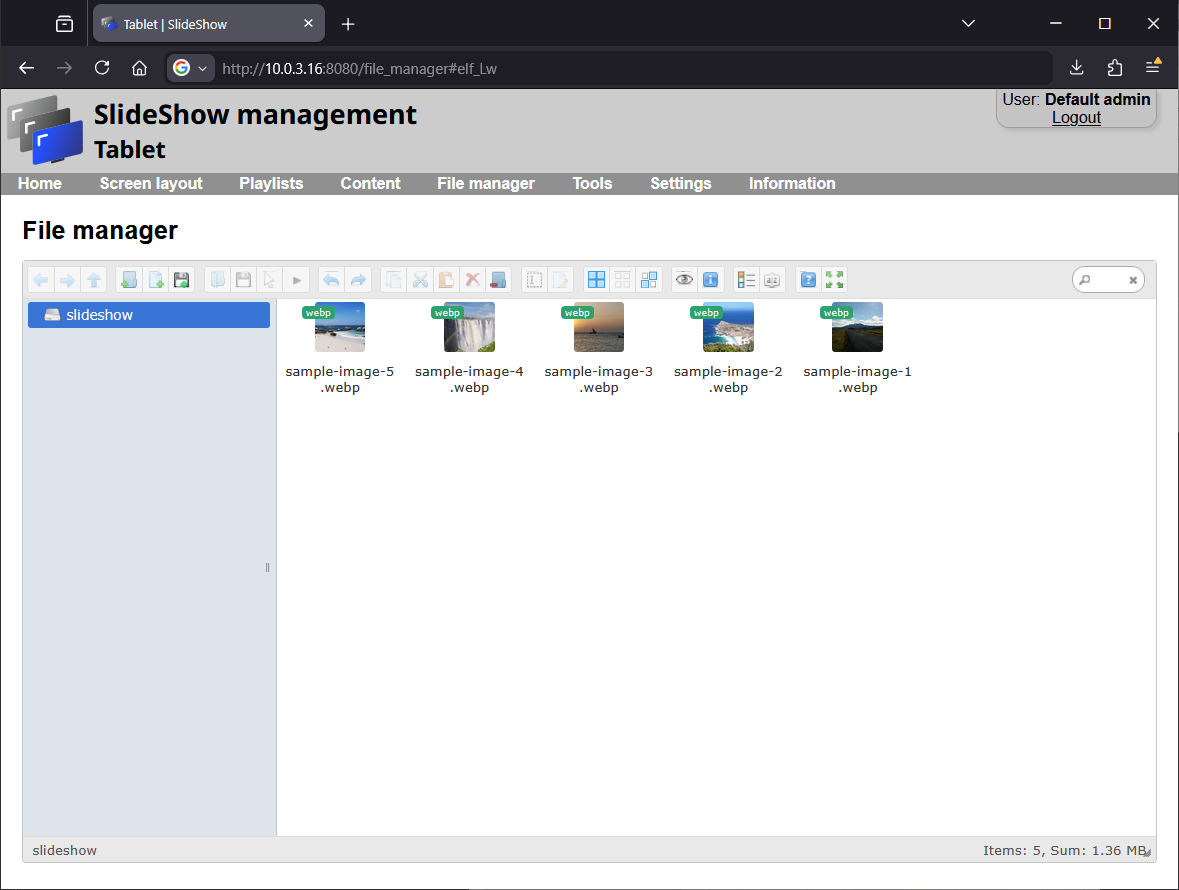
8. You can upload new files through the web interface → menu File Manager. Add files which you would like to play through Slideshow using drag and drop them from your computer to the File manager.
9. Explore the documentation and video tutorials to find out more about features